

Overview
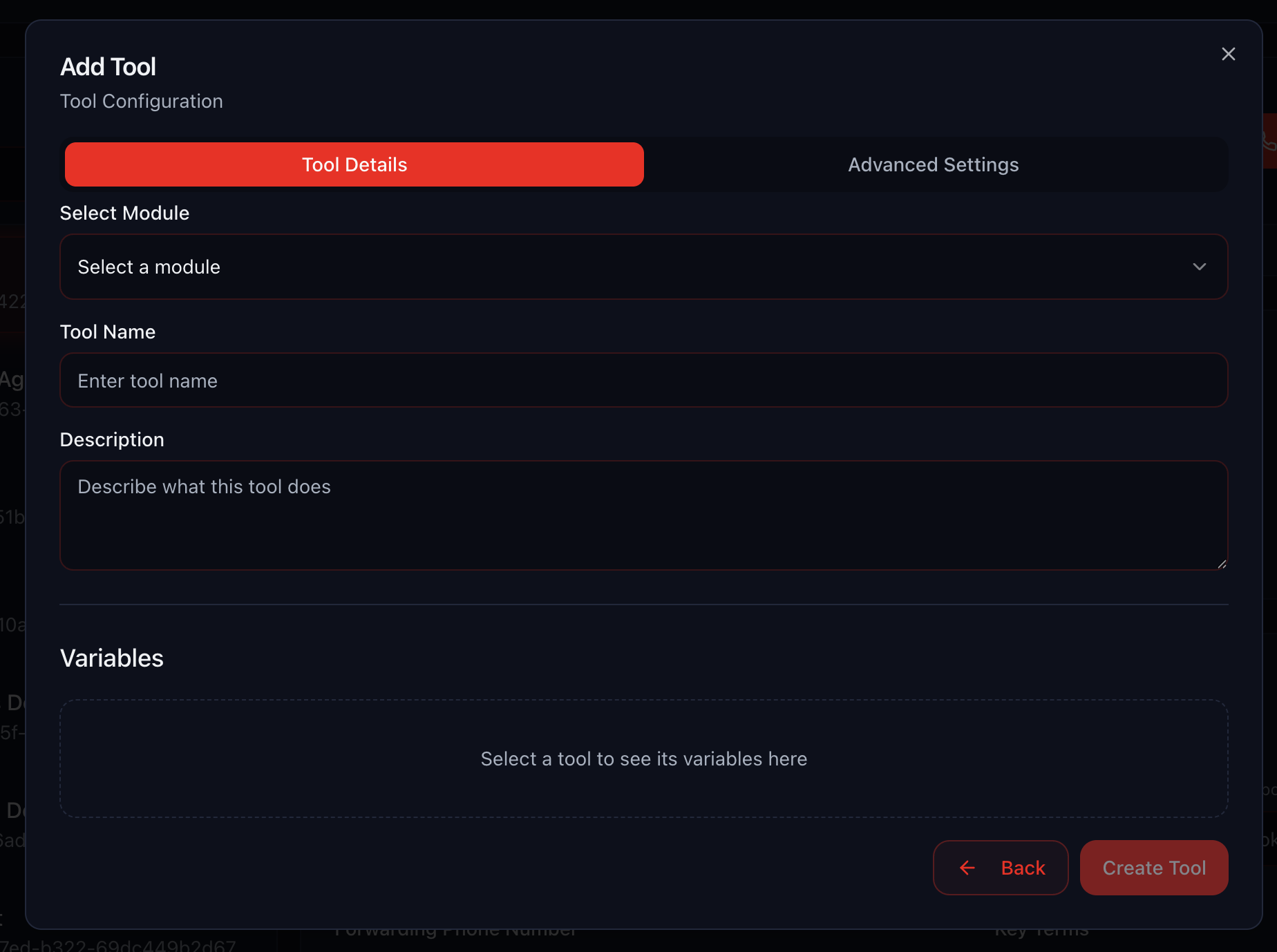
The Tool Library provides ready-made integrations that your AI agents can use during conversations. No coding required—just add the tool, configure the settings, and your agent can book appointments, send messages, fetch data, and more.Variables vs Configurations
Understanding the difference between variables and configurations is key to using tools effectively.Variables
Configurations
- Configuration: You set the Calendar ID once (which calendar to check)
- Variables: The agent fills in the start_date and timezone during each conversation

GoHighLevel Integration
Find Or Create Contact
Find Or Create Contact
name– The full name of the user (optional)phone– Phone number in international format (optional)email– Email address (optional)
- Look up customer before booking appointment
- Create new leads on the fly
- Verify contact exists before proceeding
Fetch Free Slots
Fetch Free Slots
start_date– Start date to search from in ISO 8601 format (required)end_date– End date to search until in ISO 8601 format (optional)timezone– Timezone in IANA format (optional)
- Calendar ID – The GoHighLevel calendar to check
- “What times do you have available this week?”
- Check availability before offering booking
- Display multiple options to the customer
Get Booked Appointments
Get Booked Appointments
timezone– Timezone in IANA format (optional)
- “Do you have any upcoming appointments?”
- Verify appointment before rescheduling
- Check if customer already has a booking
Cancel or Reschedule Appointment
Cancel or Reschedule Appointment
action– Either “cancel” or “reschedule” (required)appointment_id– The ID of the appointment to modify (required)booking_id– The booking ID (required)new_start_time– New time in ISO8601 format (required for reschedule)timezone– Timezone in IANA format (optional)
- “I need to reschedule my appointment”
- Cancel no-shows automatically
- Move appointments to different time slots

Cal.com Integration
Fetch Free Slots
Fetch Free Slots
start_date– Start date to search from in ISO 8601 format (required)end_date– End date to search until in ISO 8601 format (optional)timezone– Timezone in IANA format (optional)
- Event Type ID – The Cal.com event type to check availability for
- Show available appointment times
- Let customers choose from multiple slots
- Check next week’s availability
Get User Bookings
Get User Bookings
attendee_email– Email of the attendee (required)timezone– Timezone in IANA format (optional)
- Event Type ID – The Cal.com event type to query
- “What appointments do I have scheduled?”
- Find booking ID before canceling/rescheduling
- Verify appointment details
Cancel or Reschedule Booking
Cancel or Reschedule Booking
action– Either “cancel” or “reschedule” (required)booking_id– The ID of the booking to modify (required)new_start_time– New time in ISO8601 format (required for reschedule)timezone– Timezone in IANA format (optional)
- Reschedule appointments on customer request
- Cancel bookings that are no longer needed
- Move appointments to accommodate schedule changes
Popular Tools
Commonly used tools that work across all industries.Book AI Callback
Book AI Callback
call_time– Local time to call back in ISO 8601 format (required)timezone– Timezone in IANA format (required)first_message– Opening line when callback connects (optional)
- “Can you call me back in 2 hours?”
- Schedule follow-up calls
- Respect customer’s preferred contact times
- Handle “I’m busy right now” objections
Get Current Time
Get Current Time
timezone– Timezone in IANA format (optional)
- Default Timezone – The fallback timezone if none is specified
- Calculate “tomorrow” or “next Monday”
- Verify it’s during business hours
- Convert between timezones for scheduling
Send Twilio SMS
Send Twilio SMS
to_number– Phone number in international format (required)message– The SMS message content (required)
- Twilio Account SID – Your Twilio account identifier
- Twilio Auth Token – Your Twilio authentication token (secret)
- From Number – The Twilio number to send from
- Send appointment confirmations via SMS
- Text a receipt or booking reference
- Send follow-up information after the call
- Share links or documents
Send SendGrid Email
Send SendGrid Email
to_email– Recipient’s email address (required)subject– Email subject line (required)message– Email body content (required)
- SendGrid API Key – Your SendGrid API key (secret)
- From Email – The email address to send from
- From Name – Display name for the sender
- Email appointment confirmations
- Send detailed information too long for SMS
- Share documents or links
- Follow up with additional resources
Solar Savings (US Only)
Solar Savings (US Only)
monthly_bill– Current monthly electricity bill in USD (required)address– Customer’s full address (required)
- “How much would I save with solar?”
- Qualify leads based on bill amount
- Provide instant ROI calculations
- Create urgency with savings numbers
Fitness Industry
Specialized tools for gyms, studios, and fitness businesses using Mindbody or MyTime.
Mindbody Integration
Fetch Mindbody Classes
Fetch Mindbody Classes
date– Date to fetch classes for in dd/mm/yyyy format (required)
- MB Site ID – Your Mindbody site identifier
- MB API Key – Your Mindbody API key (secret)
- MB Email – Mindbody account email
- MB Password – Mindbody account password (secret)
- “What yoga classes do you have tomorrow?”
- Show class schedule for the week
- Check capacity before booking
Book Mindbody Class
Book Mindbody Class
class_id– The class ID to book (required)full_name– Customer’s full name (optional)phone– Customer’s phone number (optional)email– Customer’s email address (optional)
- MB Site ID – Your Mindbody site identifier
- MB API Key – Your Mindbody API key (secret)
- MB Email – Mindbody account email
- MB Password – Mindbody account password (secret)
- Book into classes instantly over the phone
- Register new members during signup calls
- Reserve spots in popular classes

GymSales Integration
Book GymSales Appointment
Book GymSales Appointment
- GymSales Company ID – Enter the GymSales company ID
- GymSales Email – Email associated with the GymSales account
- GymSales Password – Password for the GymSales account
client_id(required) – The GymSales client ID that should be bookedstart_time(required) – Desired appointment start time in local ISO8601 format without timezone offset
- Schedule facility tours for new leads
- Reserve onboarding sessions for recently closed members
- Automate follow-up bookings after trial signups
Find or Create GymSales Client
Find or Create GymSales Client
- GymSales Company ID – Enter the GymSales company ID
- GymSales Email – Email associated with the GymSales account
- GymSales Password – Password for the GymSales account
phone(required) – Contact phone number in international formatfull_name(required) – Contact’s full nameemail– Contact email address (optional)
- Capture walk-in leads directly into GymSales
- Ensure contacts exist before booking facility tours
- Enrich existing records with updated contact info

Hapana Integration
Hapana Fetch Classes
Hapana Fetch Classes
- API Key – Enter your Hapana API key
- Site ID – Enter the Hapana site ID to query
date(required) – Target date indd/mm/yyyyformat
- Surface class availability during live conversations
- Offer alternative class times when a session is full
- Automate schedule lookups for sales or support teams

MyTime Integration
Find Or Create MyTime Client
Find Or Create MyTime Client
phone_number– Phone in international format (required)full_name– Full name (optional)email– Email address (optional)
- Partner API Key – Your MyTime API key (secret)
- Subdomain – Your MyTime subdomain
- Location MyTime ID – Your location identifier
- Look up existing clients
- Create new client records
- Get client ID for booking
Fetch MyTime Services
Fetch MyTime Services
- Partner API Key – Your MyTime API key (secret)
- Subdomain – Your MyTime subdomain
- Location MyTime ID – Your location identifier
- “What services do you offer?”
- List treatment options
- Display pricing for different services
Fetch MyTime Availabilities
Fetch MyTime Availabilities
therapy_id– The service/therapy ID (required)date– Date to check in yyyy-mm-dd format (required)employee_id– Specific therapist (optional)
- Partner API Key – Your MyTime API key (secret)
- Subdomain – Your MyTime subdomain
- Location MyTime ID – Your location identifier
- Timezone – Your business timezone
- “When can I get a massage?”
- Show available appointment times
- Check specific therapist availability
Book MyTime Appointment
Book MyTime Appointment
client_id– The MyTime client ID (required)therapy_id– The service/therapy ID (required)begin_at– Start time in local ISO8601 format (required)employee_id– Specific therapist (optional)
- Partner API Key – Your MyTime API key (secret)
- Subdomain – Your MyTime subdomain
- Location MyTime ID – Your location identifier
- Timezone – Your business timezone
- Book massage appointments
- Schedule beauty treatments
- Reserve spa services
Fetch MyTime Appointments
Fetch MyTime Appointments
client_id– The MyTime client ID (required)
- Partner API Key – Your MyTime API key (secret)
- Subdomain – Your MyTime subdomain
- Location MyTime ID – Your location identifier
- Timezone – Your business timezone
- Check customer’s booking history
- Verify upcoming appointments
- Find appointment ID for rescheduling
Cancel or Reschedule MyTime Appointment
Cancel or Reschedule MyTime Appointment
action– Either “cancel” or “reschedule” (required)appointment_id– Appointment to modify (required)begin_at– New start time in ISO8601 format (required for reschedule)employee_id– Different therapist (optional)
- Partner API Key – Your MyTime API key (secret)
- Subdomain – Your MyTime subdomain
- Timezone – Your business timezone
- Reschedule treatments
- Cancel appointments
- Switch to a different therapist
How to Add Tools to Your Agent
Configure Settings
Update Your Prompt
Best Practices
Be Explicit in Your Prompt
Be Explicit in Your Prompt
“You can check appointment availability.”Good:
“When a customer asks about available times, use the Fetch Free Slots tool. Pass their timezone and search the next 7 days. Then read back the available times.”Explicit instructions = reliable behavior.
Chain Tools Together
Chain Tools Together
Handle Tool Failures Gracefully
Handle Tool Failures Gracefully
Test with Real Data
Test with Real Data
Use Timezones Consistently
Use Timezones Consistently
Secure Your API Keys
Secure Your API Keys
- Never put API keys directly in your prompt
- Use the Configuration fields (they’re encrypted)
- Rotate keys periodically for security
- Use separate keys per client when possible
- Revoke keys immediately if a client leaves
Troubleshooting
Tool Not Working
Tool Not Working
- Check your prompt: Does it explicitly tell the agent when to use this tool?
- Verify configurations: Are all required fields filled in correctly?
- Test credentials: API keys, calendar IDs, etc. may be incorrect or expired
- Check tool logs: Look for specific error messages in the conversation transcript
- Test the API directly: Use Postman or curl to verify your credentials work
Agent Using Tool at Wrong Time
Agent Using Tool at Wrong Time
Variables Not Populating
Variables Not Populating
Timezone Issues
Timezone Issues
API Rate Limits
API Rate Limits
Integration Not Showing in Tool Library
Integration Not Showing in Tool Library
- Check if you’ve connected the integration first (e.g., GoHighLevel must be connected before GHL tools appear)
- Refresh the page
- Verify your subscription includes that integration
- Contact support if a documented tool is missing